Posts

Salesforce Fact #571 | Approval request in chatter

How can we ensure the approver receives the approval request as a chatter post. Setup -> Chatter Settings -> Enable Allow Approvals. Reference:  https://help.salesforce.com/s/articleView?id=sf.approvals_for_chatter_enabling.htm&type=5
Salesforce Fact #570 | Delete selected related records using screen flow datatable

Image
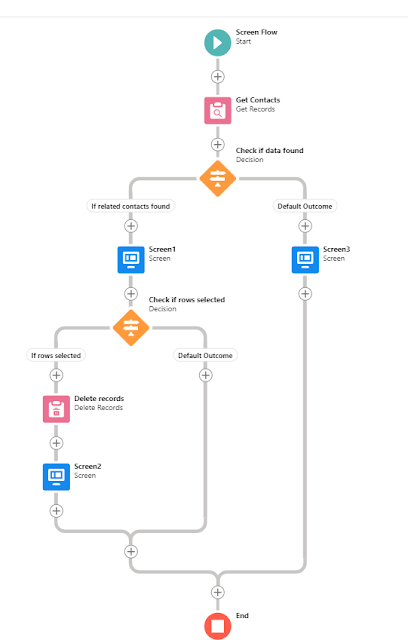
With the new datatable feature in screen flow, we can create an automation to selectively delete related records from the parent record. In this example, we are showing the related contacts in the datatable inside screen flow and the user can choose and delete particular contact records. The flow is invoked as quick action from the account record detail page. Note: This will work fine when the number of related records are not very high, else this will encounter limit errors. Attached are the screenshots.

Salesforce Fact #569 | Datatable(Beta) in screen flow

Image
With the Winter'23 release, now we can show records in lightning datatable from screen flow. It can take a collection of records as source and also it supports preselected rows. Also , we can select columns to be shown and configure certain properties. Reference:  https://admin.salesforce.com/blog/2022/learn-moar-in-winter-23-with-flow-enhancements?utm_source=trailhead&utm_medium=trailmix&utm_campaign=learn_moar_winter_23&_ga=2.56687146.1493055349.1669019286-156340033.1662614994 Attached are the screenshots.

Salesforce Fact #568 | Format date using RIGHT()

Image
Suppose there is a date field in the object and we want to format the date value to DD.MM.YYYY format. And also prefix 0 is to be considered for Day < 10 and also for Month  < 10.  Now, we can use IF check to implement this. However, we can append '0' and use RIGHT() function to get the result in a bit simpler way. Attached are the screenshots.

Salesforce Fact #567 | Display picklist based on record type in screen flow

Image
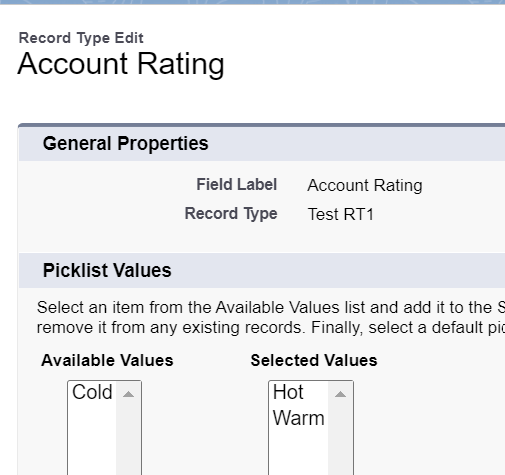
Now we can filter out picklist values based on record type in screen flows. We can use record variable and set the RecordTypeId field with the corresponding id and use the same record variable in the screen and the picklist values will appear accordingly. In this example, we have two record types on account: Test_RT1 & Test_RT2. The rating picklist values are respectively Hot, Warm and Cold. The same appears in the screen flow. Reference:  https://help.salesforce.com/s/articleView?id=release-notes.rn_automate_flow_builder_filter_picklists_by_record_type.htm&type=5&release=240 Attached are the screenshots. Note: do not use hardcoded ids. it is only for demonstration purpose.

Salesforce Fact #566 | Guest users cannot be record owners

Image
Guest users cannot be the record owners. So, in order to set the owner for the records created by guest users we can specify a default record owner in Community settings. Reference:  https://help.salesforce.com/s/articleView?id=sf.networks_assign_guest_records.htm&type=5 Attached is the screenshot.

Salesforce Fact #565 | Mass close open tasks using flow

Image
Suppose we need to close all open tasks at once for multiple records. Why not have a flow automation for this. In order to implement this, we can have a screen flow which can be reused across multiple objects and which will be invoked from the list view button. We can pass the objectCode as an input variable value which would be used for navigating back to the list view page on completion of the flow and also we can pass an input variable which will denote whether WhatId/WhoId needs to be considered. Attached are the screenshots.